Your Dashboard is your central hub for managing your account and settings, assigning activities, and keeping track of your child’s progress.
Check progress
Progress Summary
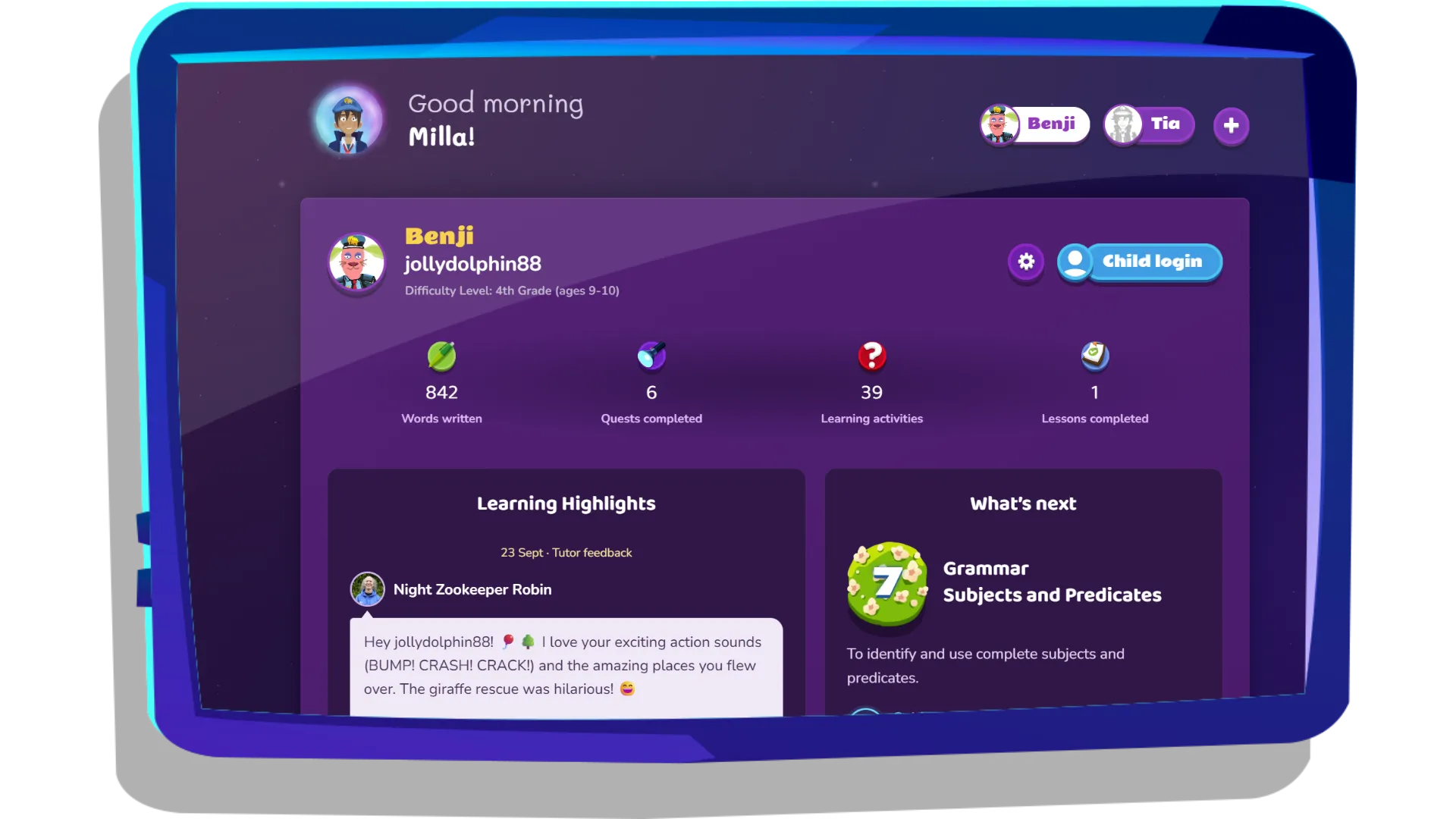
When you open your Dashboard, you will get a summary of your child’s recent activity and progress. This includes their writing, curriculum progress, milestones, and tutor comments. You can click into each area to see more details. You are also able to navigate the menu to access your chosen area.
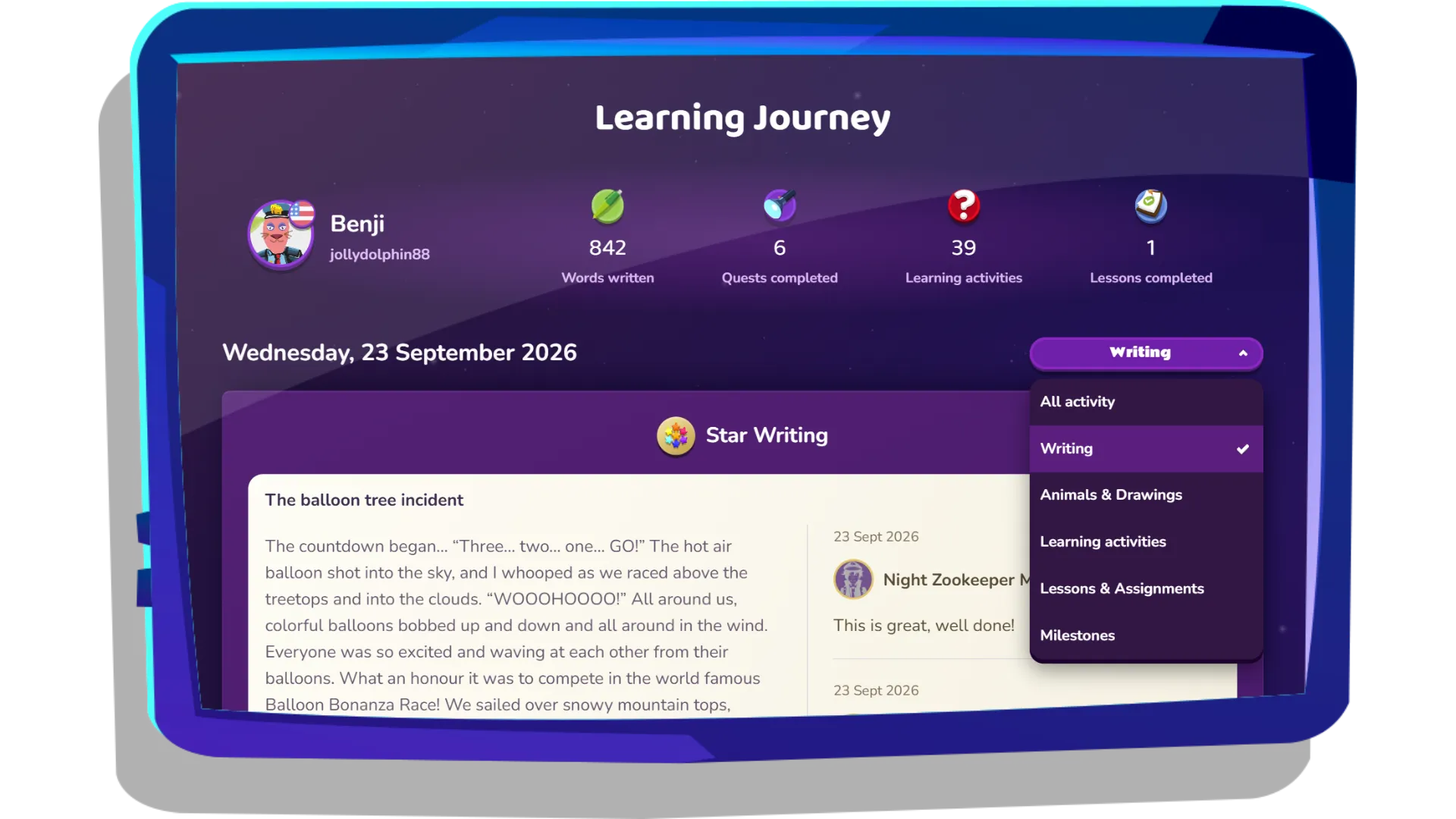
- Words Written: See all of your child’s writing and comments. Jump to writing & tutor feedback.
- Quests Completed: See the topics your child has covered in the main learning curriculum, their scores, and what’s coming next. Jump to Quest Curriculum.
- Learning Activities: See games and challenges your child has completed, including the content practiced.
- Lessons Completed: See assignments and lessons your child has completed, including the results and more details of content. Jump to Assignments.
- Animals and drawings: See all your child’s animal creations and creative masterpieces.
- Milestones: Celebrate your child’s achievements with them! See special milestones such as word counts hit, spelling races won, and Quests completed.
Quest Curriculum
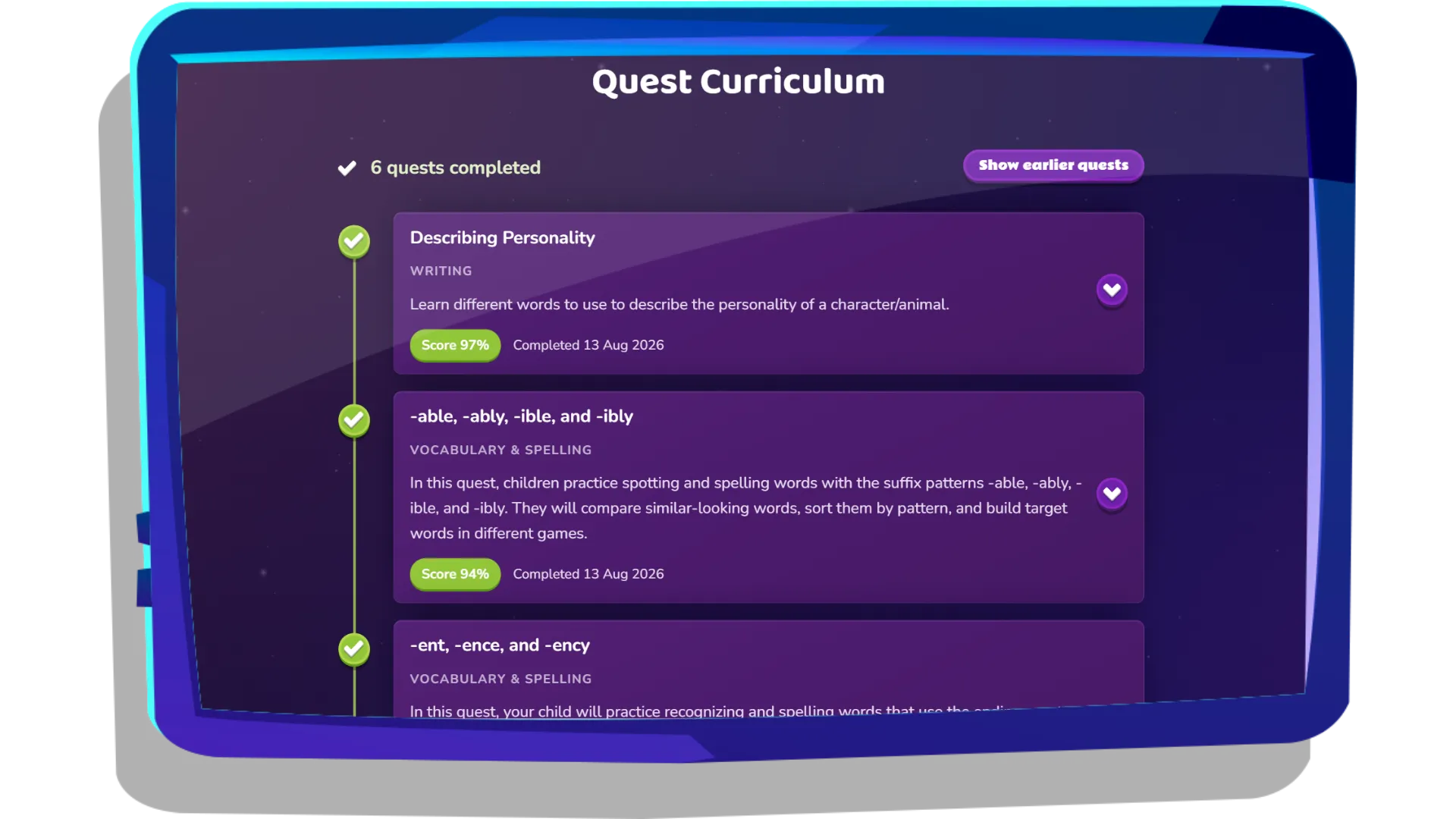
In this section you can see the full curriculum your child is working through, including topics they have completed and those they have yet to cover.
Select an individual topic from the curriculum view to see:
- a description of the topic
- the learning goal
- the vocabulary covered
- your child’s percentage score
This gives you a clear overview of the skills your child is developing and their progress through the curriculum.
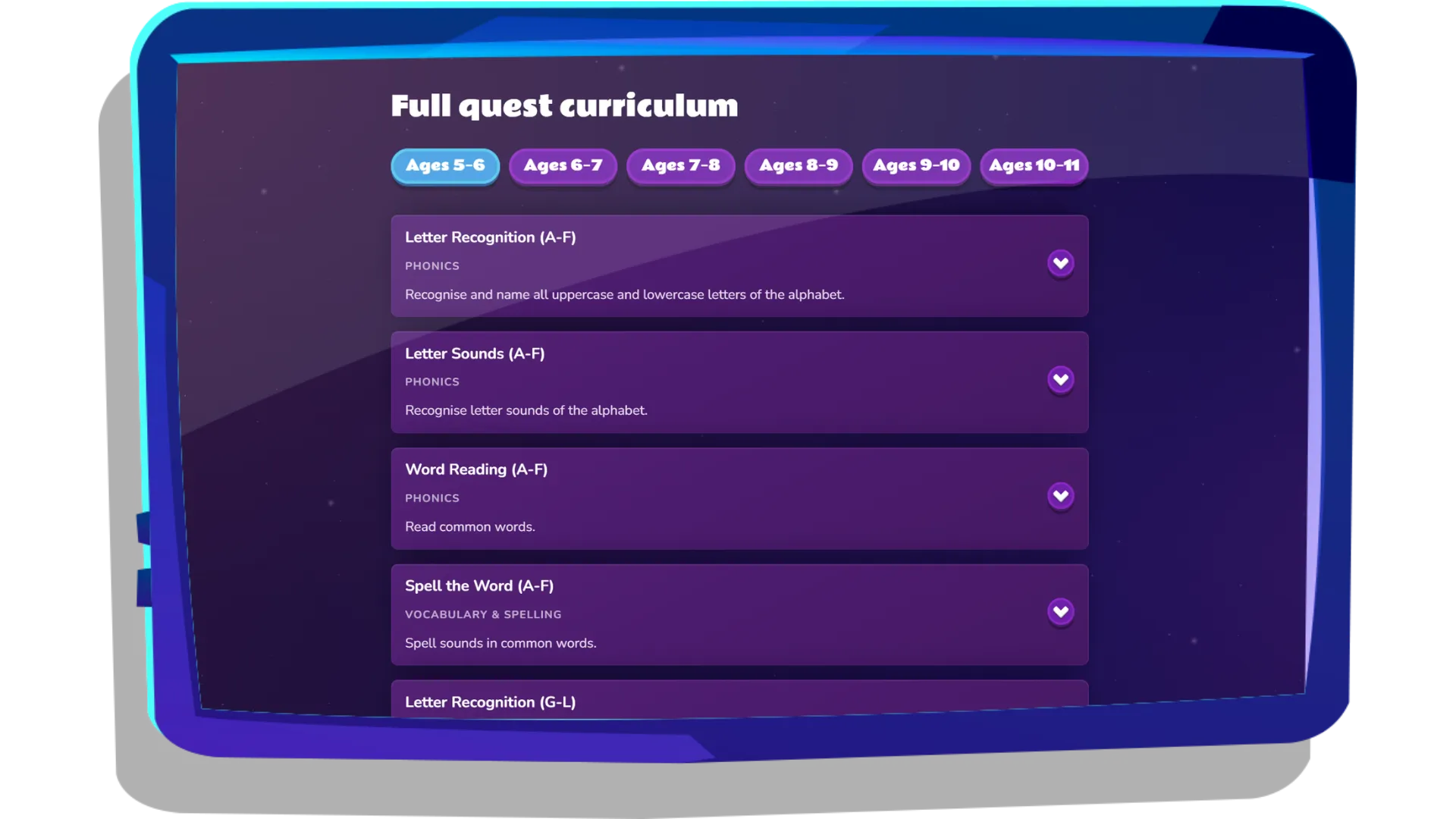
You can click ‘View Full Curriculum’ to see the curricula for all age groups.
Writing & tutor feedback
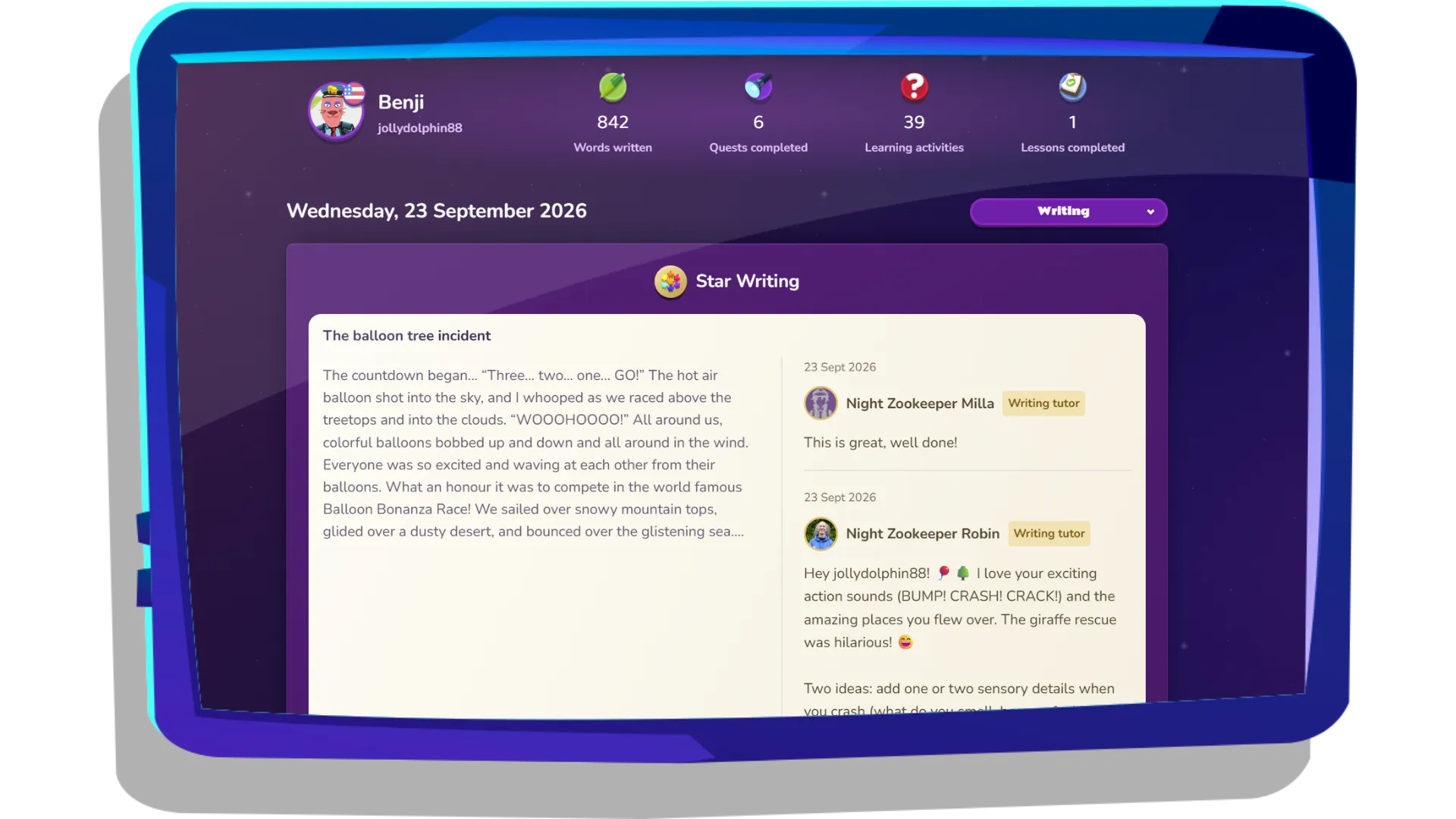
The Writing section lets you view and track your child’s writing across Night Zookeeper. See their total word count and how many words they’ve written during the current month - a great way to encourage regular writing, track progress, and celebrate milestones.
You’ll also receive writing milestone certificates by email when your child reaches certain word-count goals.
Select any piece of writing to read their work and view comments, including personalised feedback from our tutors, comments from other children, and feedback from parents or teachers.
All comments are moderated by our tutor team to help keep the community safe and positive. Tutor feedback celebrates your child’s work while offering gentle suggestions and ideas to develop their creativity.
You can also leave your own comments on your child’s writing to celebrate their achievements and show them how proud you are!
Child settings
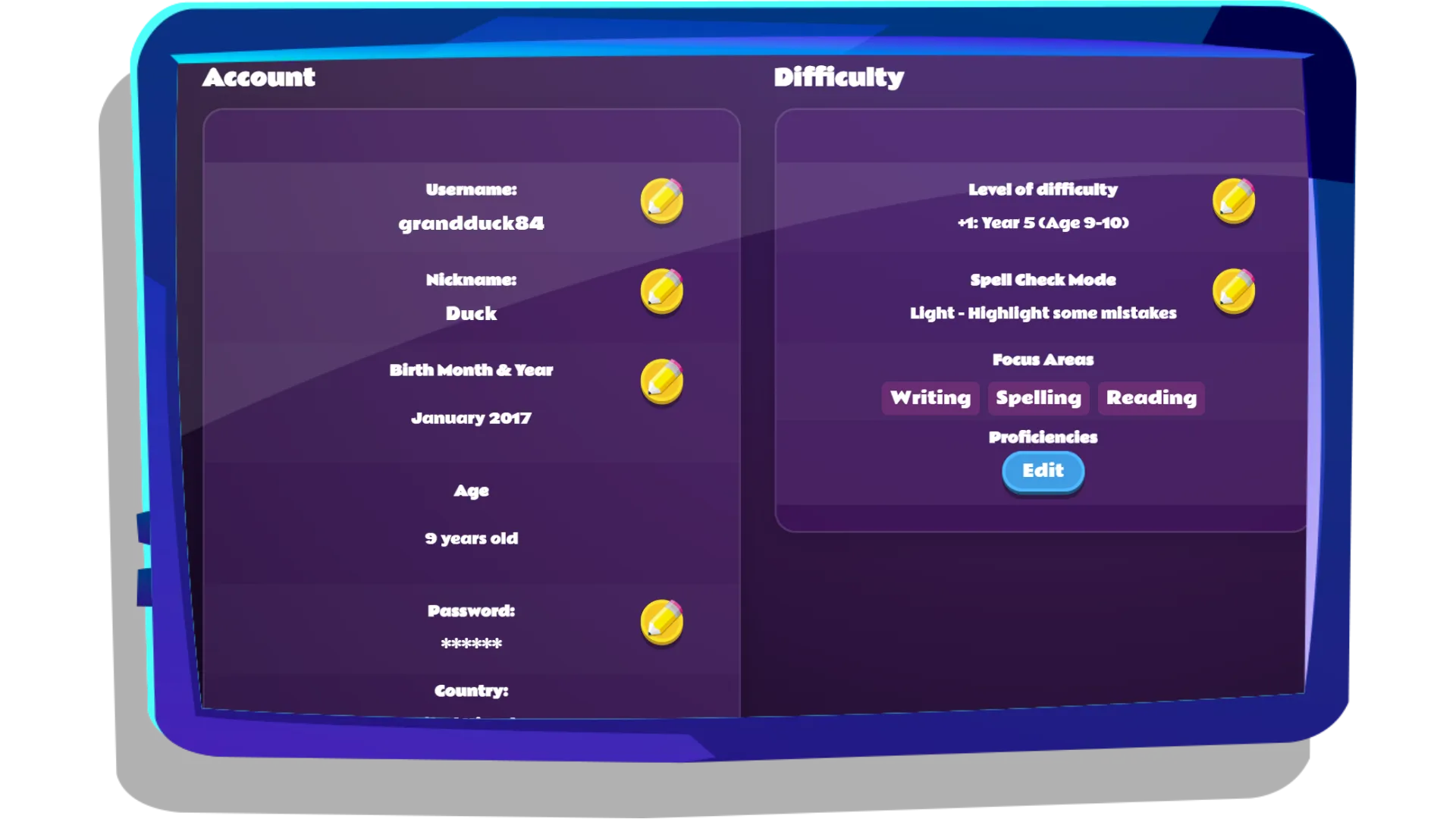
Account
- Change your child’s username and password for their child login. Please note: your child’s username can only be changed once, so make sure they choose a username they’re happy to keep.
- Set a nickname for your child. This is only visible to you and can be particularly useful if you have multiple children on your account.
Difficulty
- Adjust your child’s difficulty level. This automatically updates the curriculum content available in their program and can be changed at any time.
- Change the Spell Check settings to control how many spelling mistakes are highlighted.
The difficulty level and Spell Check settings are managed from your Dashboard and won’t be visible to your child. This gives you the flexibility to tailor their learning experience based on the areas where they need more support or challenge.
Manage Features
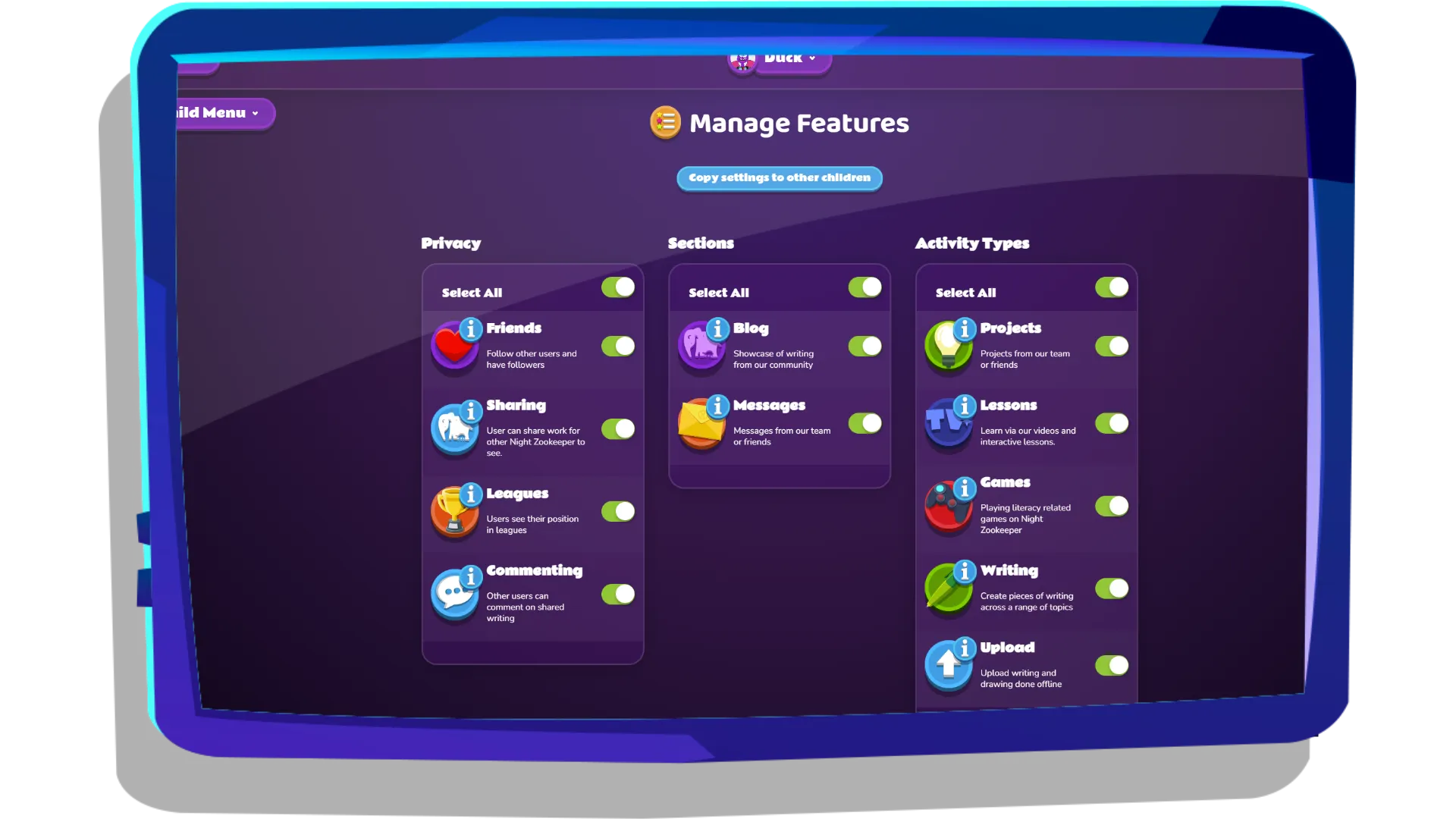
Friends
The Friends feature allows children to follow other users and gain followers within the Night Zookeeper community. When your child follows another user, they’ll receive a notification when that user posts a new piece of writing.
Safety note: Night Zookeeper does not have a live chat feature. Children cannot directly message each other; they can only interact by commenting on each other’s writing. All comments are moderated by our team of tutors.
Sharing
The Sharing setting controls whether your child can share their writing and animals publicly within the Night Zookeeper community. If sharing is turned off, your child’s work will only be visible to your child, you, and our tutor team.
Leagues
Leagues allow your child to contribute to the Night Zookeeper league tables. These tables track different areas of activity, such as words written, lessons completed, and games played. You can turn this feature on or off depending on whether you’d like your child to participate.
Commenting
The Commenting setting controls whether your child can comment on other children’s writing. All comments are moderated by our tutor team to help keep interactions safe, positive, and encouraging.
Messages
Choose whether your child receives notifications in their Messages section. Notifications include ideas submitted to their projects, comments on their writing, and important announcements such as Star Writing winners.
Safety note: Children cannot directly message other users.
Activity types
You can personalise your child’s learning experience by enabling or disabling access to features such as games, lessons, and projects.
Assignments
Assigning a lesson
In the Lesson Library, you can choose from over 100 interactive lessons covering grammar, creative writing, reading comprehension, spelling, vocabulary, and more. Browse lessons by topic and explore series made up of multiple lessons covering different sub-topics.
You can sample lessons before assigning them to one or more children and setting a due date. Assigned lessons will appear on your child’s account for them to complete.
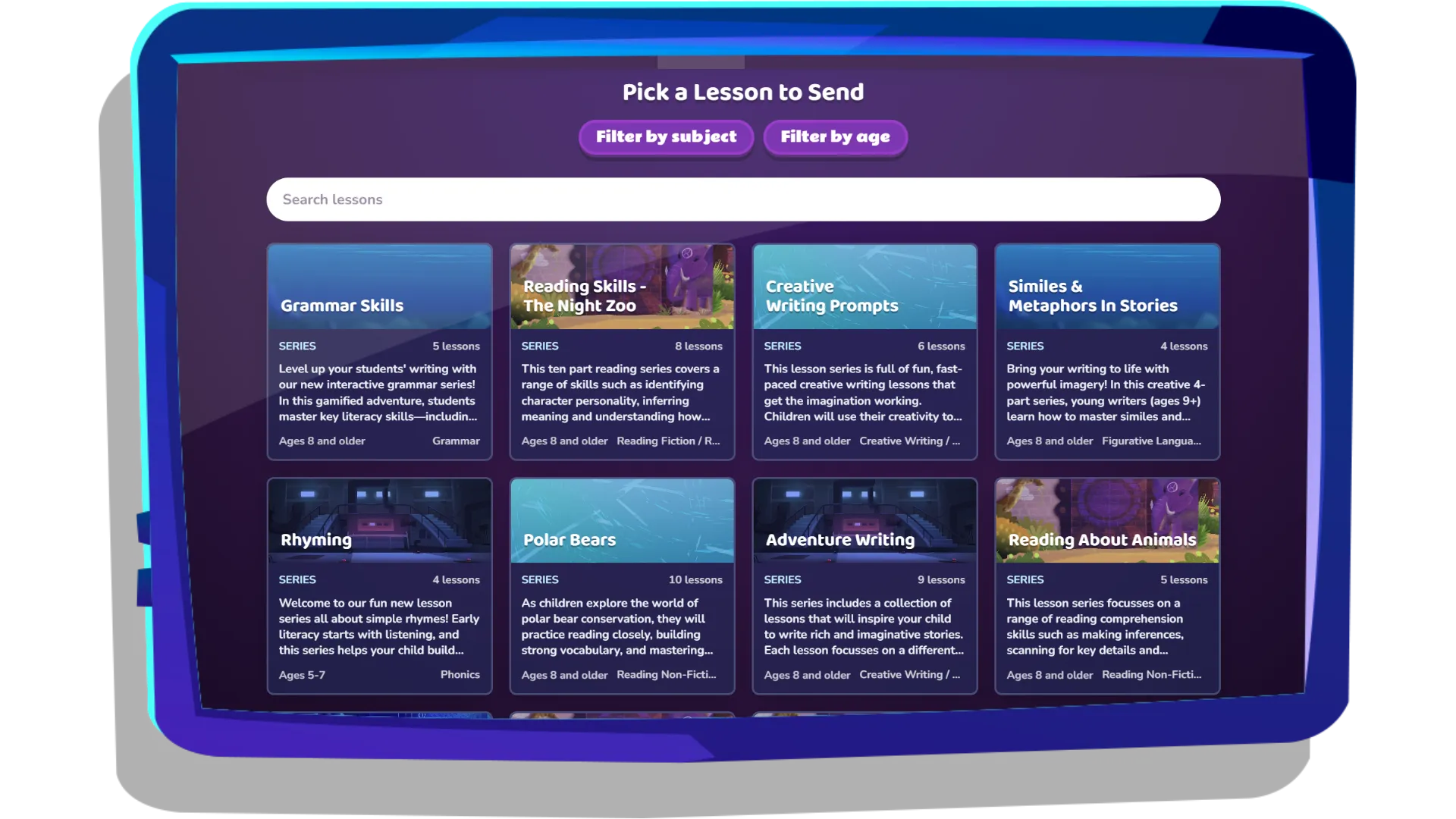
You can also create custom writing assignments on any topic and add a word bank to support your child.
When assigning a lesson, you can choose to restrict access to other Night Zookeeper activities until your child has completed it.
Suggesting a lesson
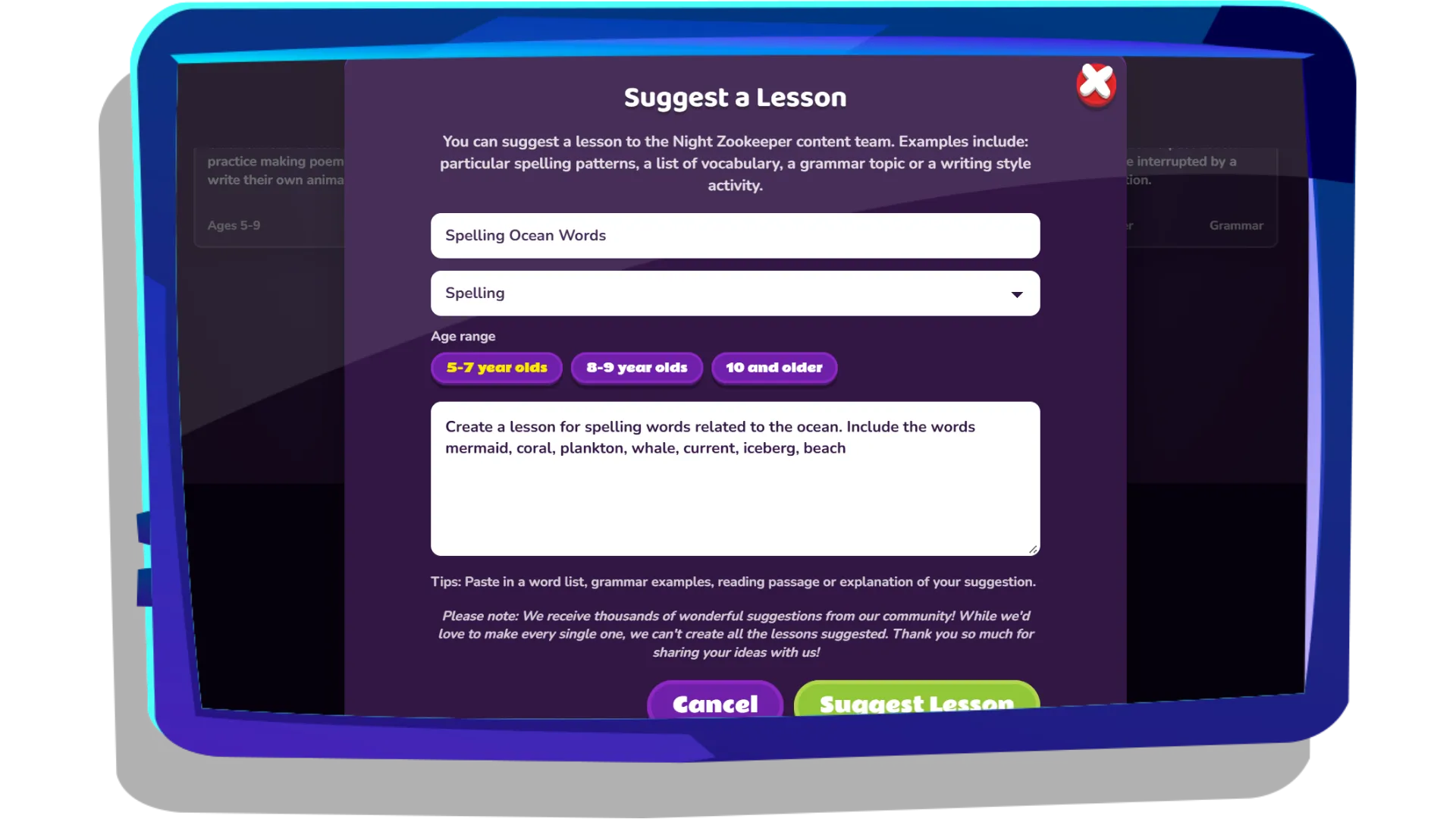
Can’t find what you’re looking for? Use our lesson suggestion feature to request a specific topic or personalised spelling list. We review every suggestion, although we can’t guarantee that every request will be created.
Results
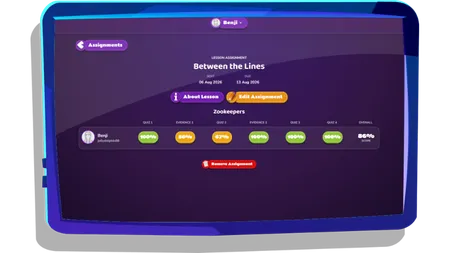
In this area, you can monitor your child’s progress on assigned lessons. For each completed assignment, you can see their percentage score to assess which areas may need more practice. You can also recap what each lesson covers and update due dates when needed.
Weekly printable resources
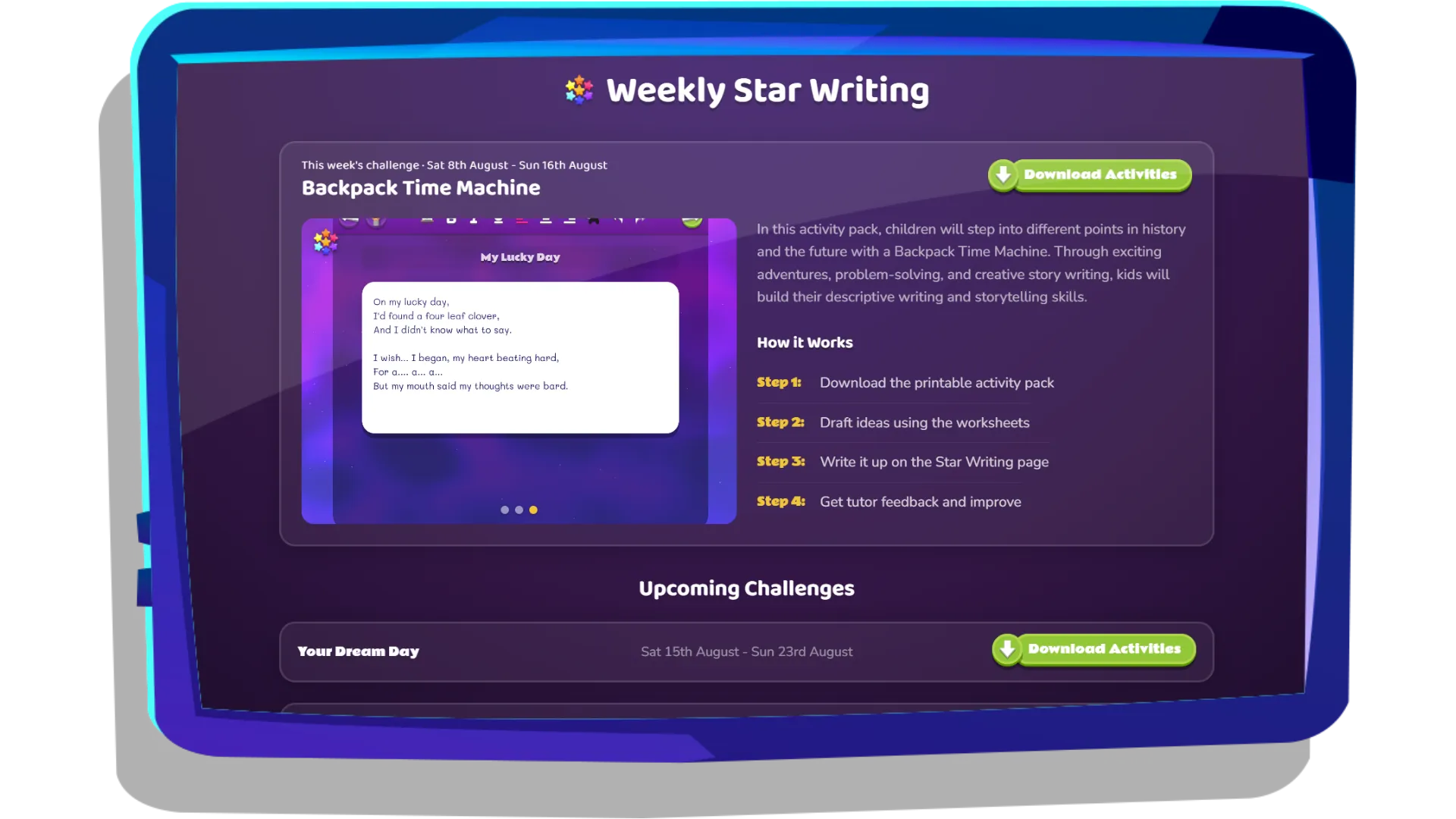
Each week, children can take part in a new Star Writing contest, featuring a fun, themed writing prompt and the chance to win real prizes.
To accompany each weekly prompt, we provide a printable activity pack that you can download from your Dashboard. Download activities week by week, or get the full month’s pack in one document to plan ahead.
The packs are designed for different ages and abilities, with activities to help children boost creativity, practice handwriting, and develop their writing skills. They also include bonus activity ideas for extra practice.
For the best results, we recommend completing the activities alongside each Star Writing entry to help build a regular writing routine both online and offline.
Manage account
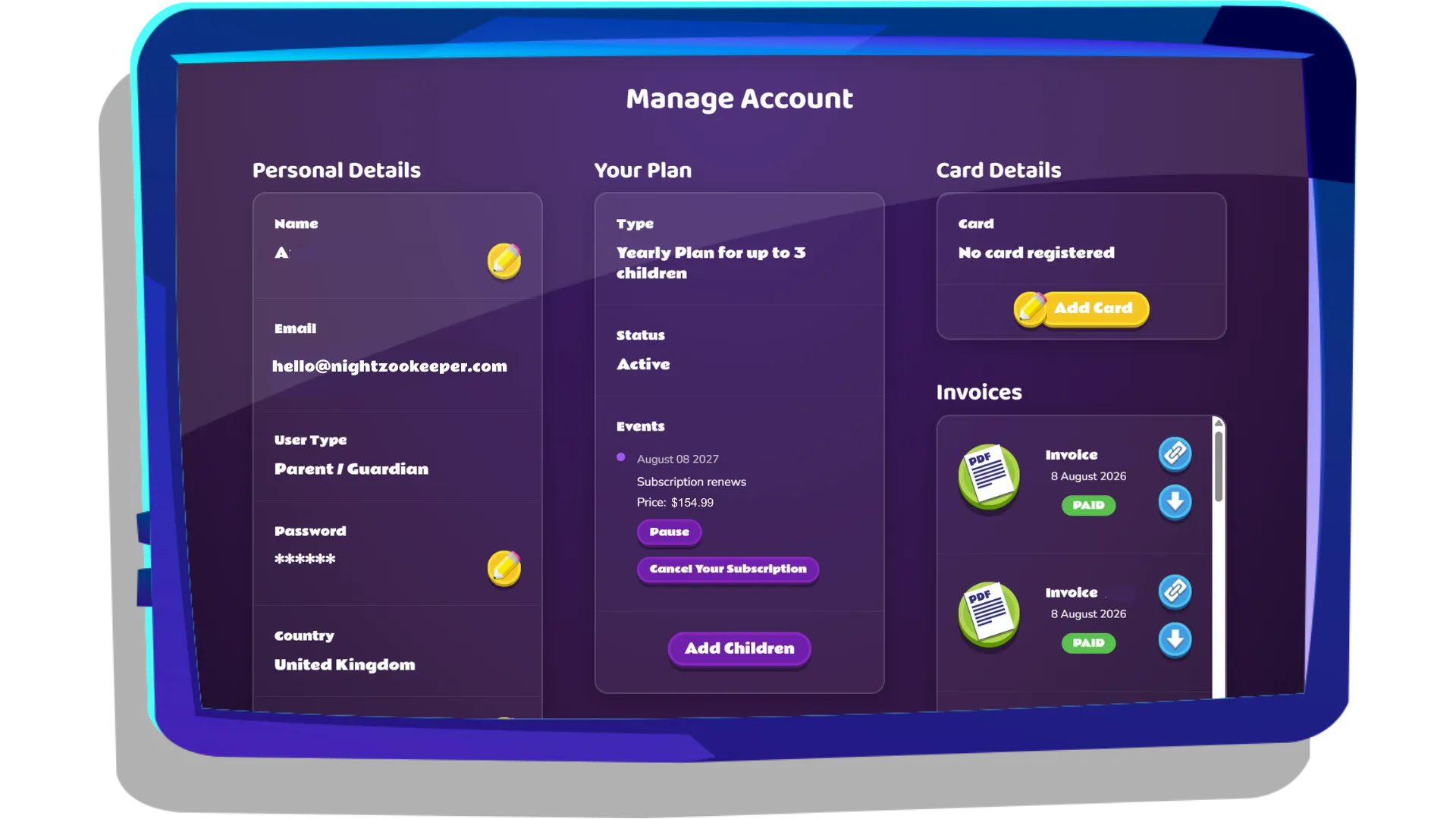
In this section, you can manage your account and subscription details in one place.
- Personal details: View and edit personal details such as your password.
- Your plan: View and manage your subscription. Please note that cancellations are effective from the next billing date.
- Card details: Update your payment information and view or download invoices.